
 It is all too easy for the Windows operating system to become damaged and render your computer unusable, stranding you from your critical applications and documents. Events such as power outages, electrical surges, or even an improper shutdown can damage or corrupt important system files which may cause the operating system to fail when loading.
This guide will show you how to use the Recovery Console feature provided on the Windows installation CD to repair your system files and get your computer working again.
Potential Symptoms
The computer turns on, but:
- Windows begins to load and then immediately restarts.
- An “Improper Shutdown” message is displayed with the option to boot into Safe Mode, but the computer restarts when this is selected.
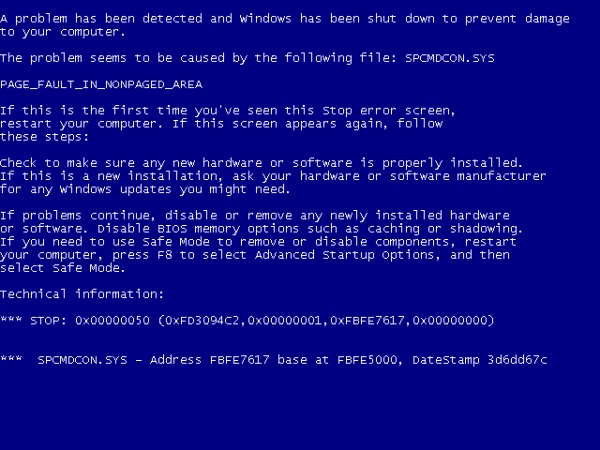
- The “Blue Screen of Death” (as shown in this article’s picture) is displayed when starting the computer.
Prerequisites
- You must acquire the Windows installation disk for the version of Windows you are currently using. This may be different than the “recovery disk” that your computer manufacturer may have provided with the computer, so it is possible that the steps below may not apply to your CD. Contact your manufacturer if you are unsure.
- Warning: The system recovery disks provided by the manufacturer may restore your computer to its original factory state! This would result in the loss of your data, so please be careful.
- Note: If you have Windows XP SP2 or SP3, you cannot use a Windows XP SP1 CD to run the recovery console.
- You need to know the Windows administrator password for your computer (if you have no password, this will be blank).
Procedure
- Insert the Windows installation CD and reboot your computer. As the computer restarts, look for the message “Press any key to boot from CD” message do so immediately.
- After loading, you will see a blue screen with some options. Press the R key to enter the recovery console.
- Select the Windows installation you wish to log onto (you may only have one).
- You will be prompted to enter the administrator password for the computer. If you do not have a password, just press enter.
- You will now see a MS-DOS console screen where you can enter the following commands to repair your system:
- Type fixboot and press enter.
- This will re-write the Windows boot record. This can resolve problems if your computer cannot locate the operating system.
- Type chkdsk /R C: and press enter.
- This initiate a disk checking function and repairs damage it encounters.
- If this test completes successfully, reboot the computer to see if the problem has been resolved.
- Optional: If the above two commands didn’t work, you can try typing ‘fixmbr’ in the recovery console and pressing enter.
This can potentially cause damage to the system’s partition table, so use this only if all other options fail and you only have a single partition on the disk.
If you follow these steps and the problem still persists, you may have to check for malfunctioning hardware or reinstall your operating system. Have any extra suggestions to help with Windows system problems? Share them in the comments!

Leave a Reply
You must be logged in to post a comment.