
Windows XP: If you have ever downloaded a disk image (ISO file), you likely burned it to a CD or DVD and put it in your optical drive. Well, image files don’t necessarily need to be burned to physical media – they can be mounted “virtually” in your operating system and be used just the same. Software such as Daemon Tools (free) and Alcohol 120% (not free) can mount disk images, but why use those when Microsoft has a free image mounting program?
Virtual CD Control Panel is a free (albeit unsupported) program from Microsoft that lets you quickly mount images in Windows XP. Although the program doesn’t list support for DVD images, I mounted the Windows 7 installation DVD without any problems.
Getting Started
- Download Windows XP Virtual CD Control Panel and extract the files.
- Copy VCdRom.sys (included in the zip file) to C:/WINDOWS/system32/drivers(or see detailed instructions below).
- Click Start –> Run.

- Type %SystemRoot%/system32/drivers and press enter.
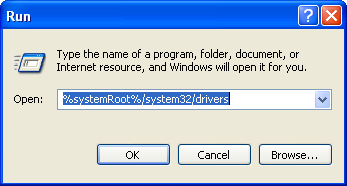
- Copy VCdRom.sys into this folder.
- Click Start –> Run.
- Run the program by opening VCdControlTool.exe
- Click Driver Control, then click Install Driver.
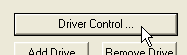
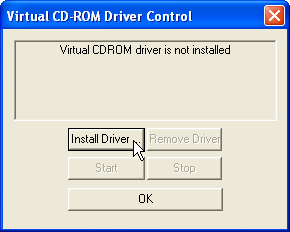
- Navigate to the folder where you copied VCdRom.sys (C:/WINDOWS/system32/drivers), select it, and click Open.
- Click Start, then OK.
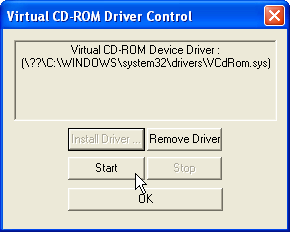
Mounting an Image File
- In the Virtual CD Control Panel application, click Add Drive which will create the virtual drive.
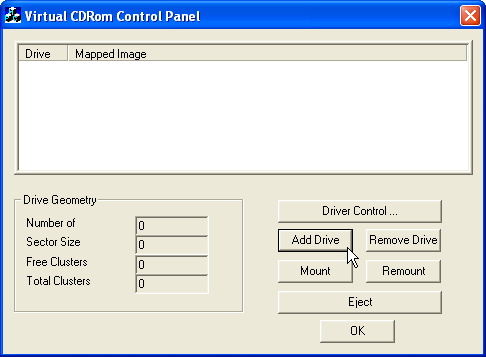
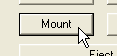
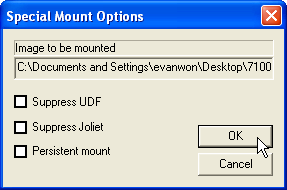
- Click ‘Mount’ and select the ISO file you would like to use. Click OK in Special Mount Options.
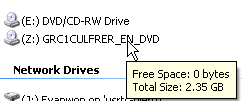
- Your disc will now be fully accessible in My Computer, just the same as if you had the disc in your optical drive.
Unmounting an Image File
- In Virtual CD Control Panel, select your virtual drive and click Eject.
- Click Remove Drive.
Virtual CD Control Panel is a free application for Windows XP. [Download]


Leave a Reply
You must be logged in to post a comment.