
 Although the increasing size of USB flash drives has decreased the need to use CDs and DVDs for data transfer, they are still very useful for backing up important files. In the event you need to burn a disc, CDBurnerXP is free, powerful, and easy to use.
Despite it’s name, CDBurnerXP supports Windows XP, Vista, and Windows 7.
Download and Install
Start by downloading CDBurnerXP from the software’s website. You will also need to have at least Microsoft .NET Framework 2.0 installed for CDBurnerXP. .NET Framework 2.0 can be downloaded from Microsoft.
Using CDBurnerXP
When you first start the program, you are presented with the menu shown below. Here you can chose the type of disc you are going to create.
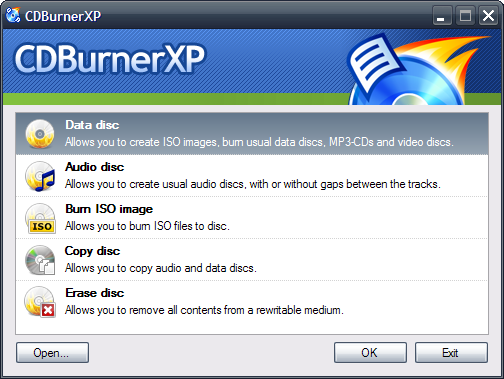
Data Disc
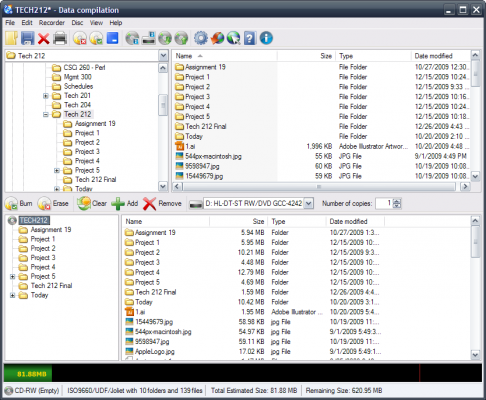
Selecting ‘Data Disc’ from the menu will bring you to the data disc compilation view. The upper part of the window shows the files and folders of your system. Drag and drop the files to the lower part of the window to add them to the disc.
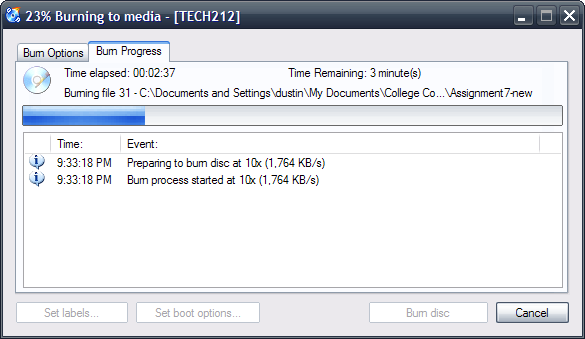
Once you have added the files you wish to burn, click the Burn button or select Disc > Burn… from the menu at the top of the window. When the disc burn has started, its progress will be shown in the window below.
Audio Disc
Selecting ‘Audio Disc’ from the menu will allow you to add audio media files to a disc to create a standard audio disc. The layout is similar to creating a data disc in the previous section. The audio disc compilation view has some extra features for dealing with audio discs allowing you to move the tracks into a specific order.
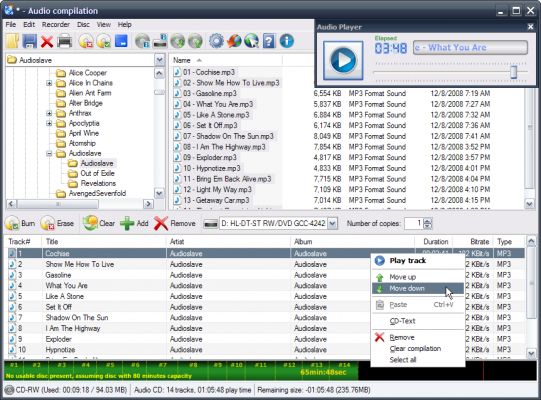
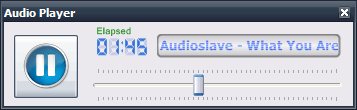
The audio disc compilation view also features an Audio Player that allows you to preview an audio file before adding it to the disc.
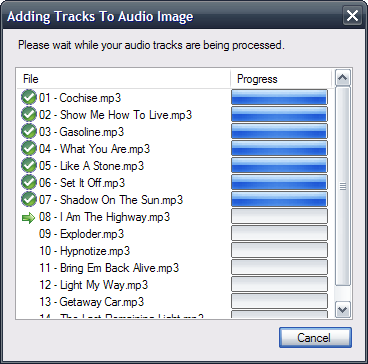
Once you have selected you audio files and added them to the compilation, click the Burn button or select Disc > Burn… from the menu. Before the burning process can start, the audio files have to be processed.
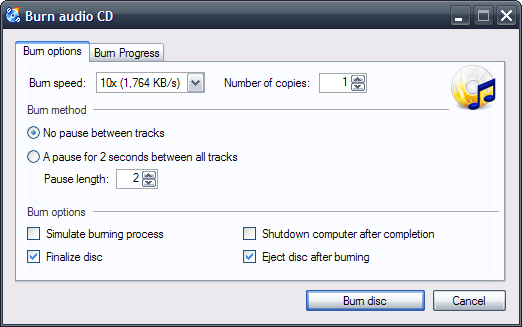
Select burning options as needed and click Burn disc to start the burning process.
Burning Image Files
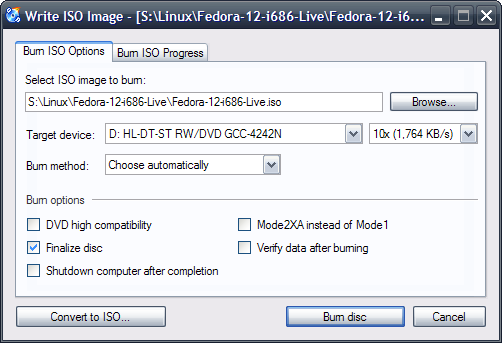
Image files are an easy way to distribute all of the data contained on a disc in a single file. To burn an image file with CDBurnerXP, select ‘Burn ISO Image’ from the menu. Select the ISO image file to burn and click Burn Disc to begin the process.
Disc Copy
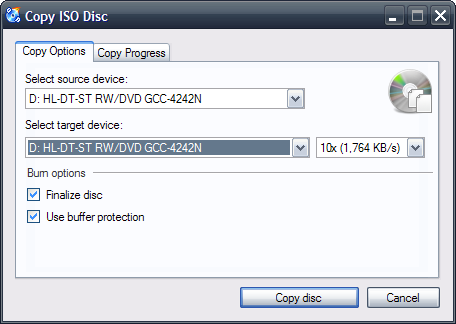
CDBurnerXP also allows copying a disc to either another disc or an ISO image file. Insert the disc to be copied into the appropriate drive, select the format and click Copy disc to begin.
Erasing Discs
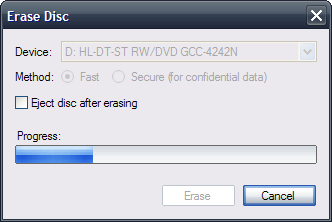
Selecting ‘Erase Disc’ from the menu will allow you to erase a re-writable disc in the drive. Choose the appropriate erasing method and click Erase to begin.
Other Features
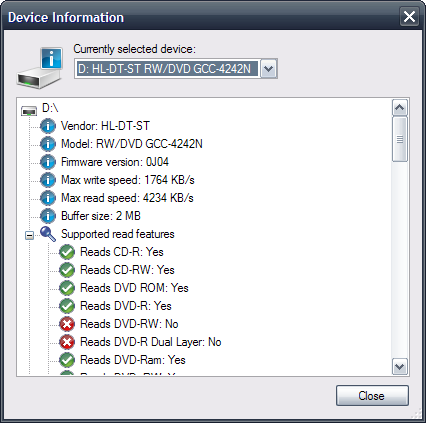
CDBurnerXP is also capable of showing you some other information regarding your discs and disc drives. Selecting Recorder > Device Information from the menu will show you what features are available and what disc are supported on your disc drive.
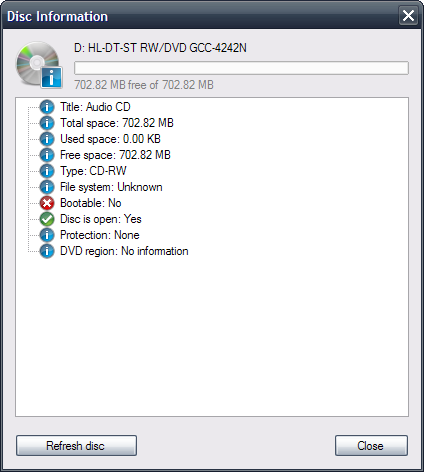
CDBurnerXP can also show you information regarding the disc currently in the drive by selecting Disc > Disc Information from the menu.
I have briefly covered the main features of the software, and if you’re looking for free and power disc burning software I suggest you give CDBurnerXP a try.

Leave a Reply
You must be logged in to post a comment.