
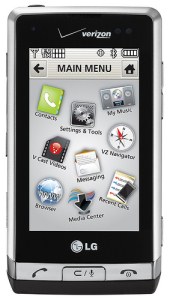
 I recently decided to part ways with my old LG Dare phone (VX9700), but before I got rid of it I wanted to back up the pictures that were still stored in its memory. Unfortunately, you can’t just plug the device into a computer and make copies, and it takes a long time to send each picture from the phone one at a time. This guide will show you how to quickly backup your pictures from your LG Dare.
Step 1: Download and install BitPim. This is incredibly useful software that lets you access your phone’s file system and we’ll be using it in this guide to backup your pictures. BitPim is available for Windows, Mac, and Linux.
Step 2: Connect your LG Dare phone to your computer with a micro USB cable. Open BitPim and go to Edit –> Detect Phone. BitPim should quickly identify your phone which you can verify in the bottom right corner of the screen.
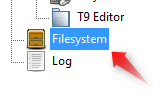
 Step 3: Click Filesystem in the bottom left of Bitpim, then open up the / folder tree in the next column.
 Step 4: Locate and expand the folder mmc1, then click my_pix. You should see a list of all your pictures in this directory, which will have numeric file names and end with .jpg. Right click the mmc1 folder and select Backup entire tree…
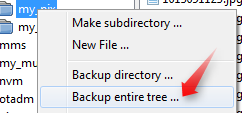 This process can take a very long time depending on how many pictures you have on your phone. You can monitor its progress by looking at the status bar. Be sure not to use the phone or the program while it says BUSY in the bottom left.

Step 5: When BitPim is finished backing up the files, a dialog box will pop up where you can specify the location you would like to save the files. The files will be stored in a compressed .zip folder.
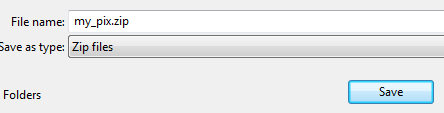 That’s it! Your pictures are now copied from your LG Dare to your computer.
Photo credit: LGEPR


Leave a Reply
You must be logged in to post a comment.