
 If your employer uses web-based email and you have an Android device, then no doubt are you wanting to access your work email on your Android smartphone or tablet. MailDroid is a great app that will allow you do so, and I’m going to show you how to set it up. Be aware that there is a Pro version of MailDroid that costs $17.99, but the free version will work fine for now.
This solution shouldn’t violate your company’s IT access rules, since you will be using a service that is most likely available from your IT group.
Note: Please keep in mind that the instructions here are given as is and if you decide to follow them, you will be doing so at your own risk. I am not responsible for lost information of any sort or any damage to content.
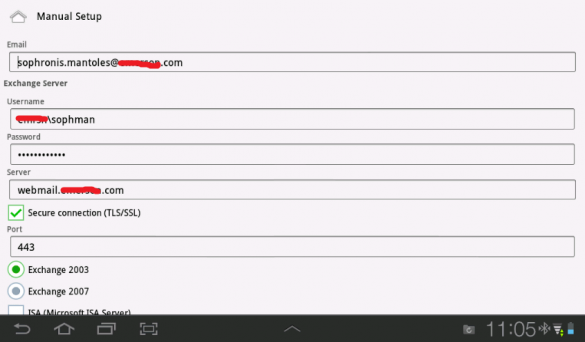
Once you have downloaded and installed the app, start it up and a dialog will open asking you to enter the following fields:
- Email: This is where you enter your email as it is given to others (john.doe@doecorp.com).
- Username: Domain\login, Be careful filling out this field. This is the same info you enter on your webmail interface (domain\firstnamelastname).
- Password: This is case sensitive.
- Server: This is the same as your web-based interface. If there are other words after the .com or .net or .org field you do not need to enter them here.
- Secure connection (TLS/SSL): Leave this field alone. If you run into issues you may have to change this later (or check with your IT department).
- Port: Leave at the default 443.
- Exchange server: This is where I had to guess. If you are not sure what your server is, you may have to try one or the other or talk to your IT department.
Next, the program will try connecting, and if it works it will start downloading your corporate email. Keep in mind that this is not an Exchange server client, but if you delete any emails here they will be lost from your inbox as well. Once you have everything setup and start seeing some email, there are some additional options you can fill in, such as inserting a signature field and enabling confirmation prompts before you delete or send an email.
One last thing about security: I recently changed my corporate email password and did not see any activity on my phone, since I forgot to update the password on the phone itself. MailDroid must be intelligent enough not to keep trying to access your account, so it locks up instead thanks to your IT department. The downfall is that the app will not give you a warning when the password is not valid or login fails.
Sadly, the app does not utilize push notifications, but it refreshes your inbox every 15 minutes or so. Do not expect the content to be live, but it will be on your device within 15-20 minutes. That alone is a huge advantage.


Leave a Reply
You must be logged in to post a comment.