

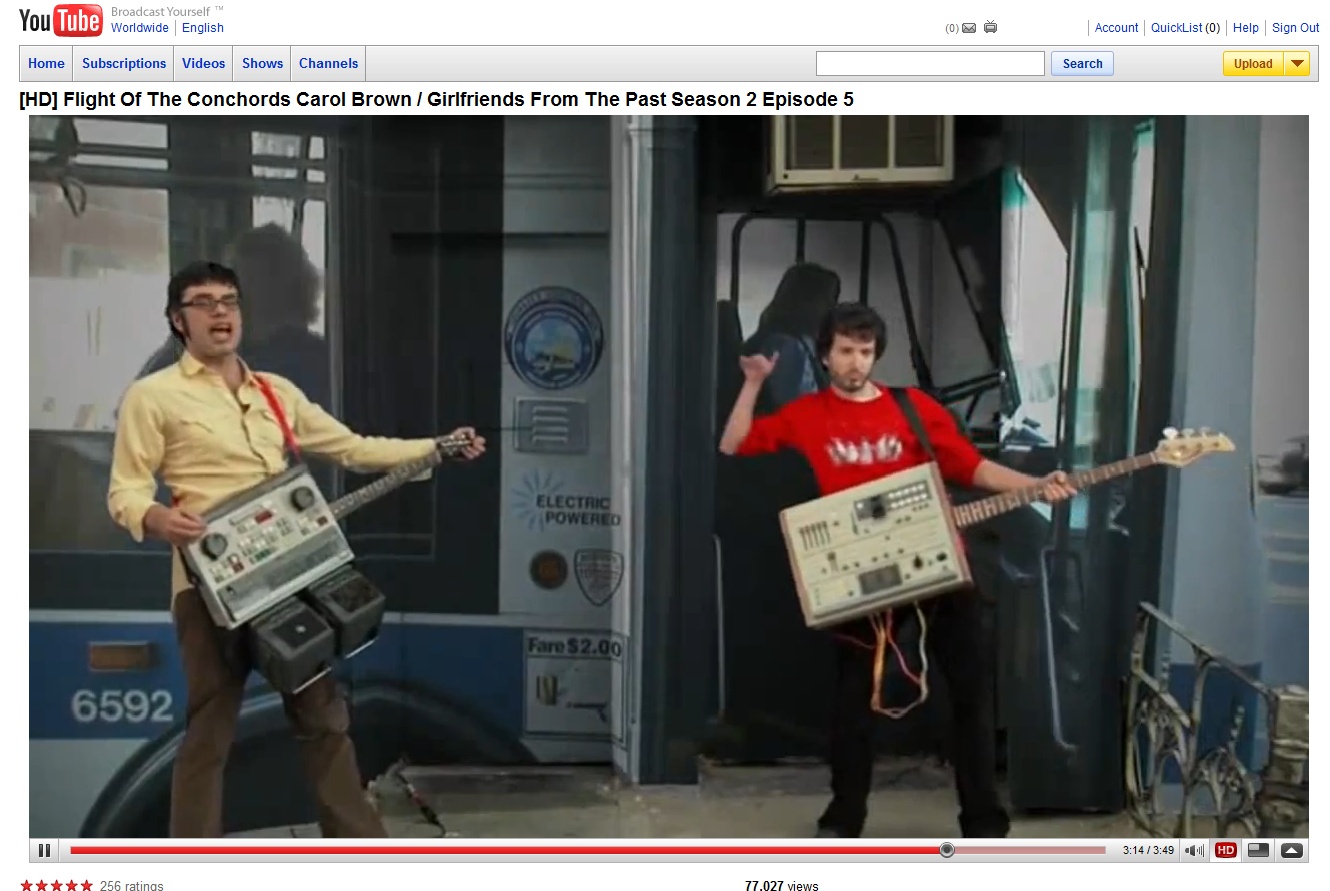
Firefox Only: Now that YouTube has a high quality / high definition option available for almost all videos, you may have found yourself wishing it would be enabled by default. Realistically, YouTube has the higher quality mode disabled by default to save bandwidth on users who don’t mind lower quality videos, but this guide will show you how to automatically view all YouTube videos in the highest quality available (and also automatically resize certain videos to a higher resolution).
To accomplish this, you will need Firefox with the Greasemonkey add-on installed [New to Greasemonkey? Check out our guide]. Once you’re running Firefox with Greasemonkey, simply install the YouTube HQ + 720p Ultimate Greasemonkey script by clicking the Install button on the script’s information page. Now when you view a YouTube video which is available in high quality, the high quality option will automatically be enabled.
YouTube videos have varying degrees of quality, so certain high quality videos will be automatically resized to a larger resolution, with many videos displaying at a full 720p. 720p-resized videos are too large for users with a display resolution of less than 1440×900, so if that is the case you can disable the resizing feature by following the instructions provided in the Options section of the script’s information page.
This script also contains several additional features which can be enabled or disabled:
- Autoplay – YouTube videos begin playing automatically by default, but with this option the video will be paused and will buffer until you click the play button.
- Jump To Player – This option automatically jumps your browser’s view to the video’s location.
- Adjust Player Colors – Users can customize the foreground and background colors of the YouTube player.
- Hide Annotations – YouTube allows video authors to add annotations to videos which can many times be spam or just plain annoying. This option disables them from showing up over your video.
- Loop – Just as you’d guess, it loops the video.
One important thing to note about Greasemonkey scripts is that if YouTube changes their code, layout, or player, the script could potentially stop working. If this happens, be sure to check the script’s information page to see if an update is available, and if no updates are available you can contact the script author via that page.
Have a Greasemonkey script for YouTube you’d like to share? Tell us about it in the comments!

Leave a Reply
You must be logged in to post a comment.