
Featured, Guides, Security, Tools/Utilities
How To: Block Unwanted IPs with uTorrent’s Hidden Blocking Feature and Blocklist Manager
June 8, 2009 by Evan Wondrasek · 23 Comments
uTorrent – a popular BitTorrent client for Windows – has a little-known IP blocking feature which can help protect you from unwanted observation by anti-P2P organizations or government institutions. The easiest way to block unwanted IPs is to download and install PeerGuardian 2, but this software only works well in Windows XP so Windows Vista and Windows 7 users should follow this guide instead.
This guide will show you how to use a program called Blocklist Manager to retrieve and compile a list of all unwanted IPs, then use uTorrent’s built-in blocking feature to block them. Don’t worry about the length of the procedure, most of these steps only have to be performed once.
It should be noted that while blocking IPs can help hide your BitTorrent usage, it is not perfect and the absolute best method for staying safe is to avoid downloading copyrighted material.
Procedure
- Open uTorrent and click Options –> Preferences.
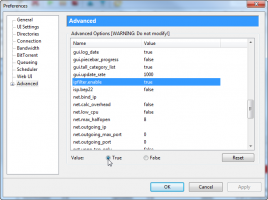
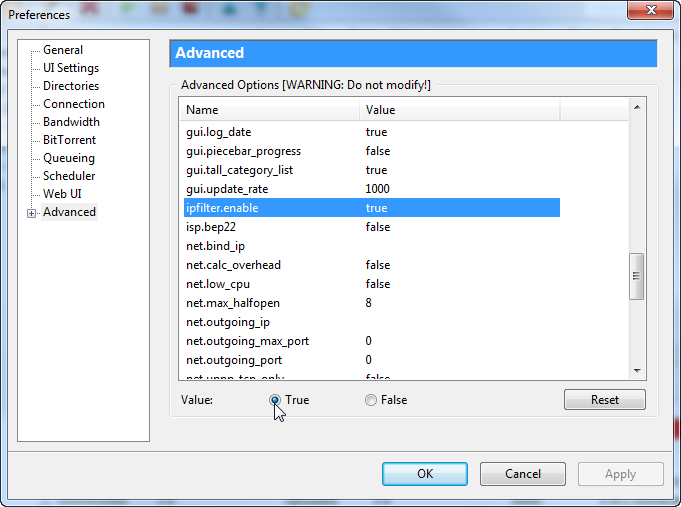
- Click Advanced and locate the entry ipfilter.enable and make sure it is set to true. Close uTorrent.
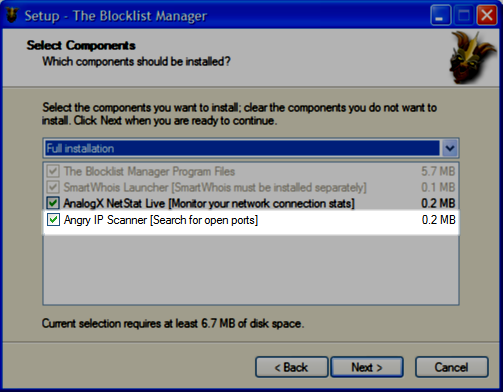
- Download and install Blocklist Manager. Note: During installation, your virus scanner may warn you about an application called Win32/Angryscan.A. This software is optionally included with Blocklist Manager (and can be disabled during installation), but I do not consider it to be harmful.
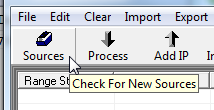
- Open Blocklist Manager and click the Sources button to download a directory of sources (Note: this does not actually download the block lists, just the directory of lists).
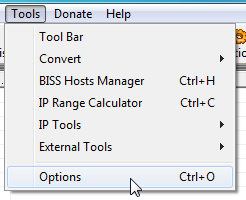
- Click Tools –> Options.
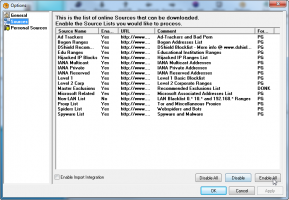
- Click Sources and enable any IP lists you would like to be protected from. I chose to block all lists except for the Non-LAN List, but the Level 1 and Level 2 lists would probably be sufficient for most users. Click OK.
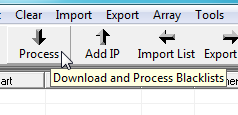
- Click the Process button to start downloading and compiling any IP lists you selected. This may take some time, so be patient while it processes the files.
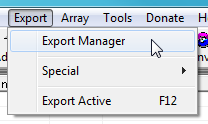
- Once the processing is finished, click Export –> Export Manager. This is where you will tell the program where to save your newly created block list so uTorrent can load it.
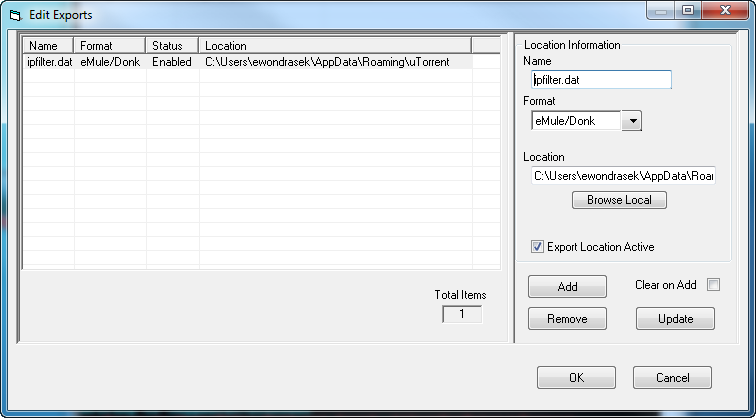
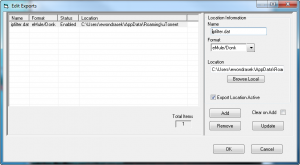
- Use the following settings (also shown in the image below):
- Name: ipfilter.dat
- Format: eMule/Donk
- Location: (Note: You may need to enable viewing hidden folders for this step)
- Windows XP: Click ‘Browse Local’ and navigate to C:\Documents and Settings\<USERNAME>\Application Data\uTorrent
- Windows Vista/7: Click ‘Browse Local’ and navigate to C:\Users\<USERNAME>\AppData\Roaming\uTorrent
- Check the ‘Export Location Active‘ box and click Add. Click OK.
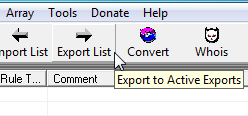
- In the main program again, click the Export List button. This will save the block list to the uTorrent folder you set in the previous step.
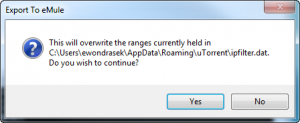
- If prompted about overwriting an existing file, click Yes.
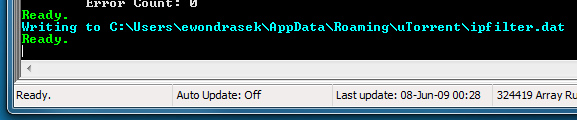
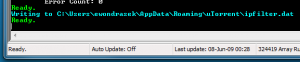
- Once the export process has finished, verify that no errors occurred in the command area of the program. If none, your block list was successfully saved to the uTorrent folder.
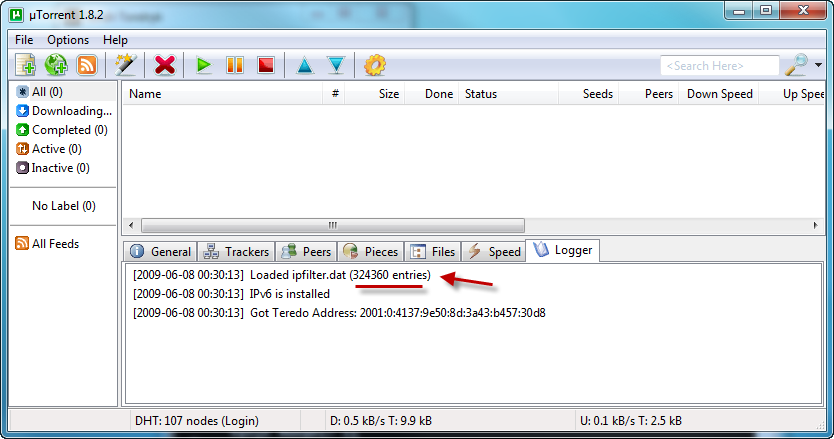
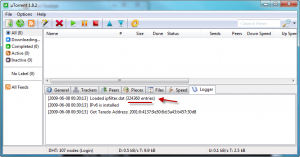
- Open uTorrent and click the Logger tab (as shown below). If you see a message stating that ipfilter.dat (# of entries) was loaded, everything worked properly!
It is very important to update your ipfilter.dat file regularly to get the most recent block lists. To do this, download the updated IP lists and export them by repeating Step 7 and Step 10 above, then restart uTorrent to load the new list.


I load and update ipfilter.dat a different way that is easier for me…but this way works great too. Good guide.
Here's the link for the updater I use. http://tinyurl.com/knqdma
After clicking the tinyurl link use the search box below the anti-leeching text and type in "ipfilter.dat" and click on the first link that shows up. It will take you to the post with the download link for the updater with instructions.
Yeah, good guide. Thanks for the link.
thank you for this guide, everything worked well, i just hope the blockers do they're job
The blocklist manager contains malware/spyware called “angryscan” that tries to install when you download the program.
Angryscan (or Angry IP Scanner) is somewhat mislabeled as malware/spyware. This program is used to scan IP ranges (which can be used for security testing or malicious purposes), so certain companies consider it to be "malware".
From Microsoft:
"Tool:Win32/Angryscan.A is a tool used to 'sniff' for or gather information sent over a network by a specific IP address range."
Angryscan does not allow an intruder to scan your computer, it in fact lets you scan others' computers. It is included with Blocklist Manager as a 'feature' but it can be disabled during installation as shown in this image: http://www.techerator.com/wp-content/uploads/angr...
If you have already installed Angry IP Scanner unintentionally, it will not harm your computer. If you are concerned, remove Blocklist Manager under Start –> Control Panel –> Add or Remove Programs –> BLM and reinstall it with the Angry IP Scanner feature unchecked.
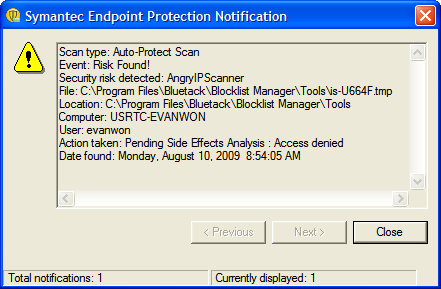
(For the record, my Symantec also thinks it is malware: http://www.techerator.com/wp-content/uploads/angr... )
Aww, I was excited for Blocklist, but it apparently but does not in Windows 7 64bit.
It does work, because i am using it now
Excellent guide mate,
cheers!
I would really be interested in a way to schedule the tasks to run automatically, is this possible?
FYI: It works fine for me in Win7 Ultimate 64bit. I've also used it successfully on Vista Ultimate 64bit and Vista Business 32bit.
It looks like this program can be scheduled to automatically update your ipfilter.dat file: http://movies.hexagon.cc/torrents/47147-Ipfilter_...
Hello;
I worked thru all the steps and receive this error when I got to step 13.
[2009-11-05 18:10:58] IPv6 is installed
[2009-11-05 18:10:58] Got Teredo Address: 2001:0:4137:9e50:2c79:2c6a:e75f:b0ab
[2009-11-05 18:10:58] Torrent storage folder can't be the same as the autoload folder!
It looks like your problem might not be related to the blocklists, but a setting with your uTorrent folders. Check out these links and let me know if you're still having problems:
http://forum.mininova.org/index.php?showtopic=235...
http://forum.gsmhosting.com/vbb/archive/index.php...
It looks like your problem might not be related to the blocklists, but a setting with your uTorrent folders. Check out these links and let me know if you're still having problems:
http://forum.mininova.org/index.php?showtopic=235...
http://forum.gsmhosting.com/vbb/archive/index.php...
Excellent guide mate
I followed the steps listed and received this error:
:: Error in WriteFile: Path/File access error, file=C:Users…..AppDataRoaminguTorrent
But I checked utorrent and it was showing up in the logger tab, I also hit "clear logger" which I apparently shouldn't have done. Does this mean I undid everything, or just that it's not viewable?
What do I do to make it show up again?
Clear logger will just clear any error messages, so any problems that occur should still show up next time you open the program.
Double check the file path you set in Step 9, it looks like that is the source of the error you saw.
Hi. Thanks for the awesome guide. Only thing which stumped me was in step 8: "click Tools –> Export –> Export Manager" should really be "click Export –> Export Manager", like in the screen shot!
Good catch! Thanks for letting me know, I fixed it now
quick question, do you need to have blocklist manager always running?
Hi Nat,
Once you've followed the entire guide you will no longer need to keep Blocklist Manager running. All of the blocked IP addresses will be stored in ipfilter.dat which uTorrent uses.
Make sure to update the blocklist often though to keep the filters up-to-date.
Thanks for these instructions – I also had the problem with the Export List step causing the error “Error in WriteFile: Path/File access error” under Windows 7. Here is the mistake I made – I thought that in the export manager that the path should be set to the AppData directory for uTorrent. It was not clear to me that the various blocklists from Blocklist Manager all get exported to a file in AppData/Roaming/uTorrent which *must* be named ipfilter.dat (I know you mention this but I missed this step – you might want to mention specifically that this name must be created, that all the blocklists get exported into this one file).
Blocklist Manager is a really cool app and I’m extremely glad I found it after the UAC issues with running PeerGuardian under Win7.
Thanks again Evan for your excellent article!
Thanks man. Best guide I've found on this. Much appreciated!