
Fedora, Guides, Software
How To: Install Adobe AIR in Fedora 11
June 11, 2009 by Dustin Patterson · 15 Comments
With a new install of Fedora there are a few basic programs that typically should be installed including Java Runtime and Flash Player, and with the recent increase in the number of AIR applications Adobe AIR has been added to the list. With the default install of Fedora 11, installing AIR does present a problem. Even as root, a vague error message like the one shown below is presented half way through the installation.
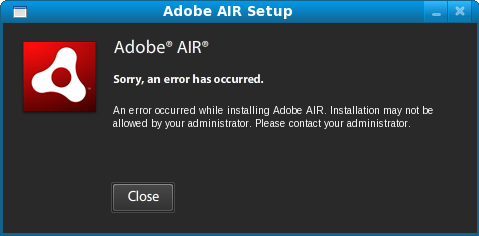
Sorry, an error has occurred.
An error occurred while installing Adobe AIR. Installation may not be allowed by your administrator. Please contact your administrator.
The above problem is easily corrected with the following procedure.
Procedure
- Download the Adobe AIR binary for Linux from http://get.adobe.com/air/
- Open the terminal
- Install gtk2-devel and rpm-devel from the terminal as root
- Once the packages and dependencies are installed, you can now install Adobe AIR with the following commands
- Agree to the License
- Depending on what AIR application you are installing, simply double-clicking the application may not install it. An error you may get is shown below
- It is possible to install an AIR application from the terminal like shown below
yum install gtk2-devel rpm-devel
chmod +x AdobeAIRInstaller.bin
./AdobeAIRInstaller.bin
Sorry, an error has occurred.
The application could not be installed. Try installing it again. If the problem persists, contact the application author.
Error# 5100
Adobe\ AIR\ Application\ Installer /path/to/file.air
If the above steps are followed, you should now be able to install Adobe AIR and applications without any problems.
Related posts:


Thanks for the tip, I was able to install AdobeAIR using this after a very frustrating day yesterday, wrasslin’ with Fedora 11. I’m really enjoying F11 but missing AIR (and Tweetdeck) had me down. Thanks again for all your help!
Not a problem. I was really surprised myself to find no reference of the problem in any help files.
Thanks for this – really usefu
Thanks, worked perfectly.
doesnt work for me…..why ?
1st: Make sure you are running all commands as root.
2nd: The above guide was written for an installation of Fedora with the preselected packages. Depending on the way your customized the installation, certain packages may have been removed that are necessary to run Adobe AIR. Make sure that the system has all of the required libraries installed. The list of prerequisite packages can be found at http://kb2.adobe.com/cps/408/kb408105.html.
Dustin
thanks. was trying to install AIR this day, and got several of these errors.
Thanks so much, I was have serious withdrawals since upgrading for F10
Thanks, this was perfect.
didn't work got this message:
Application crashed with an unhandled SIGSEGV
Crashlog has been dumped in /tmp/airCrashLogs/0914_1725_YAEkm4
It seems that the above error is a generic error seen in other Adobe programs such as Flash. There is usually an section of output above the SIGSEGV Crashlog which may contain more information in regards to the problem.
Another thing to do would be to verify that all dependencies were indeed installed. Here is a list of the dependencies: http://kb2.adobe.com/cps/408/kb408105.html
Good luck!
Step 7: Open the terminal and login with root using "su -" and enter the root password. Once you have logged in, find the location of the .AIR file you plan to install. I have mine currently on my Desktop so the exact file path is "/home/dustin/Desktop/DestroyTwitter172B.air". In the terminal, type "Ad" (without quotes) and hit the Tab key on your keyboard to auto-complete. Next, type the path of the .AIR file you found before. Following the above steps, my complete line is as below:
The AIR application installation should start and complete successfully.
The link appears to have moved.
http://kb2.adobe.com/cps/521/cpsid_52132.html#Ins...
These instructions also work for Fedora 12. Simply substitute any i586 entry for i686.
E.G
yum install gtk2-devel.i586
Becomes
yum install gtk2-devel.i686
For Libxslt:
yum install libxslt.i686
Great tutorial, thanks. One thing I would add in is that you need to install the 32-bit versions of rpm-devel and gtk2-devel if you are running the 64-bit version of Fedora 11.
Jim,
Great tip! It's often easy to forget that not all 64-bit applications work as easily as 32-bit, and thus you need to install the 32-bit version.
Dustin