
 If you’ve ever written a document in Microsoft Office Word, chances are you’ve wanted to save it as a PDF for easy sharing. Publishing to PDF isn’t included in the standard installation of Microsoft Office Word, but you can add it in a few easy steps which I will cover in this quick tip.
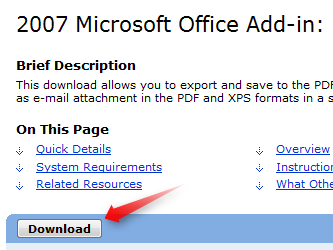
Step 1: Head over to the Microsoft Save as PDF or XPS Add-in for 2007 Microsoft Office programs page. Make sure to close Microsoft Office Word if you currently have it open.
Step 2: Download and install the Microsoft Save as PDF or XPS add-in.
Step 3: Re-open Microsoft Office Word. You will now have the option to save as PDF in the Save As menu!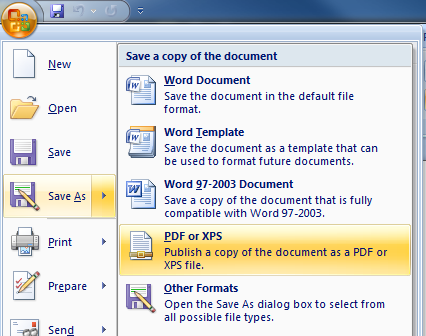


Leave a Reply
You must be logged in to post a comment.